Free listing badge
How to Verify a Dofollow Backlink for a Free Listing
Free listings are reviewed like every other listing. A successful badge check controls dofollow treatment; it does not buy approval or guarantee a search result.
- Reviewed by
- SubmitForBacklinks Editorial Team
- Published
- Updated
- Checked
Direct answer: verification checks the live badge, not a screenshot
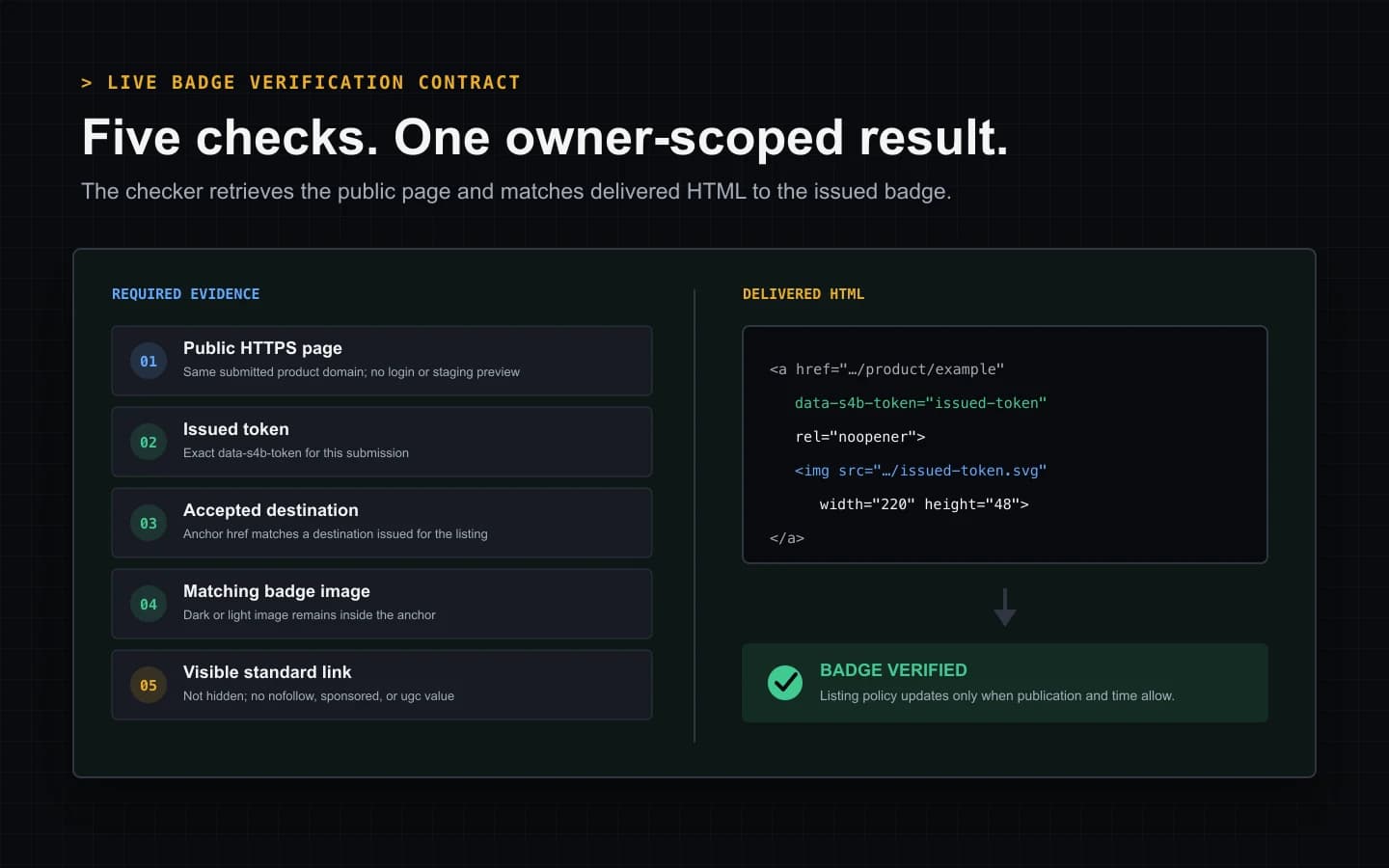
To verify a dofollow backlink for a free SubmitForBacklinks listing, open the submission in your dashboard, copy the issued reciprocal-badge HTML, publish it on a public HTTPS page on the submitted product domain, and paste that exact page URL into the verifier. The checker retrieves the live HTML and confirms that the issued token, destination link, and badge image are present in one visible anchor. If the listing is already published, a successful check changes its outbound product link from nofollow to a standard link for the remaining verified follow window.
The badge provides reciprocal evidence on your website. Your backlink is on the public SubmitForBacklinks listing. Verification controls that link's crawler-facing treatment.
What SubmitForBacklinks verifies
The verifier checks more than the brand name. Each submission receives a unique token and exact embed code. A valid installation must keep the issued pieces together:
- a normal HTML anchor with a working
href; - the submission's
data-s4b-tokenvalue; - one of the accepted badge destinations issued for that listing;
- the matching dark or light badge image inside the anchor; and
- no
nofollow,sponsored, orugcvalue on the reciprocal anchor.
The last rule matters because rel="noopener" and rel="nofollow" are not
equivalent. noopener protects a page opened in a new tab from controlling the
original window. It does not qualify the link. nofollow, sponsored, and
ugc describe the publisher's relationship with the destination, so the
current reciprocal-badge contract rejects those values.
The checker also rejects badge markup that is explicitly hidden with common
HTML attributes or inline styles. A zero-sized image, display:none,
visibility:hidden, zero opacity, hidden, inert, or aria-hidden="true"
does not count as a visible installation. The page should show the badge to a
normal visitor without requiring a click.
Prepare a page the checker can reach
Choose a durable public page before editing your site. A footer, About page, press page, partners page, or resources page can work. The best location is one you expect to keep available through the verification period.
The verification URL must use HTTPS and stay on the same registrable domain as the submitted product. A subdomain is acceptable when it belongs to that domain. A different company domain, localhost address, staging host, password protected preview, or URL containing credentials is not accepted. Redirects must also resolve to an eligible page on the submitted domain.
Publish the page before pressing Verify. A draft in a site builder, an unpublished CMS revision, or a local development preview cannot be fetched by the service. If a firewall blocks automated retrieval or the server responds with an authorization or not-found status, the checker cannot confirm the badge even when you can see it while signed in.
Install the issued badge without changing its identity
Open Complete badge verification on the submission page. The dashboard automatically prepares dark and light themes. They carry the same verification identity, so choose the style that is readable against your background.
Copy the entire embed snippet rather than reconstructing it by hand. You may place the snippet inside an existing layout container and adjust surrounding spacing. Do not change the token, destination URL, or badge image URL. Do not move the image outside its anchor. Those values are the evidence the checker matches to your submission.
Many content systems accept the snippet in a Custom HTML block. In a React or
Next.js site, translate the issued attributes carefully: class may become
className, but data-s4b-token, the anchor href, the image src, width,
height, and accessible alternative text should remain. If an image optimizer
rewrites the badge URL, use the original image URL or confirm that the original
value remains in src, data-src, or data-lazy-src in the delivered HTML.
After publishing, open the page in a private browser window. Confirm that it loads without authentication, the badge is visible, and the badge link opens the expected SubmitForBacklinks destination. This human check catches most verification failures before the automated request.
Run the check from the dashboard
Paste the exact public page containing the badge into the Verify the page field. The dashboard adds HTTPS when a simple domain or path can be normalized. Press Verify badge. A new installation returns one of three meaningful states:
- Badge verified and dofollow active. The free listing is published, the follow window has time remaining, and its product link now uses standard treatment.
- Badge verified and pending publication. The reciprocal installation is valid, but the approved listing has not gone live. The follow window starts when publication and verification are both true.
- Badge verified but benefit complete. The original window has expired. The Free listing is due for automatic removal. Its link is nofollow while cleanup waits for booked ads, an open checkout, or a refund to finish. After removal, submit the website again for review and verify a new badge to start another 60-day window.
The dashboard also shows the public listing containing the backlink, the backlink destination, and the current crawler-facing policy when the follow link is active. That is the direct place to inspect the result. A green status is evidence that the product currently recognizes; it is not a promise about how a third-party search engine will crawl, index, value, or rank either page.
Manual verification has a short cooldown to prevent duplicate concurrent checks. If you just pressed the button, wait about a minute before retrying instead of repeatedly submitting the same page.
Verify or inspect the badge from the terminal
The terminal commands use the owner credential created during browser
authorization. You do not need to copy a separate API key into an environment
variable. Replace SUBMISSION_ID and the example page with your own values:
submitforbacklinks badge-issue SUBMISSION_ID

submitforbacklinks badge-verify SUBMISSION_ID \
  https://yourproduct.com/partners

submitforbacklinks badge-status SUBMISSION_ID
badge-issue returns the supported themes and exact markup. badge-verify
checks the public target. badge-status reports the saved target, verification
state, last check, follow start, expiration, and link policy available to the
owner. The dashboard, CLI, REST API, and MCP tool all use the same
owner-scoped badge service rather than separate verification rules.
If the guided Free submission opened your browser automatically, continue on that submission page and install the badge there. The command-line methods are most useful when an agent is maintaining several owner-authorized submissions or when you want to recheck after a deployment.
How the 60-day follow window works
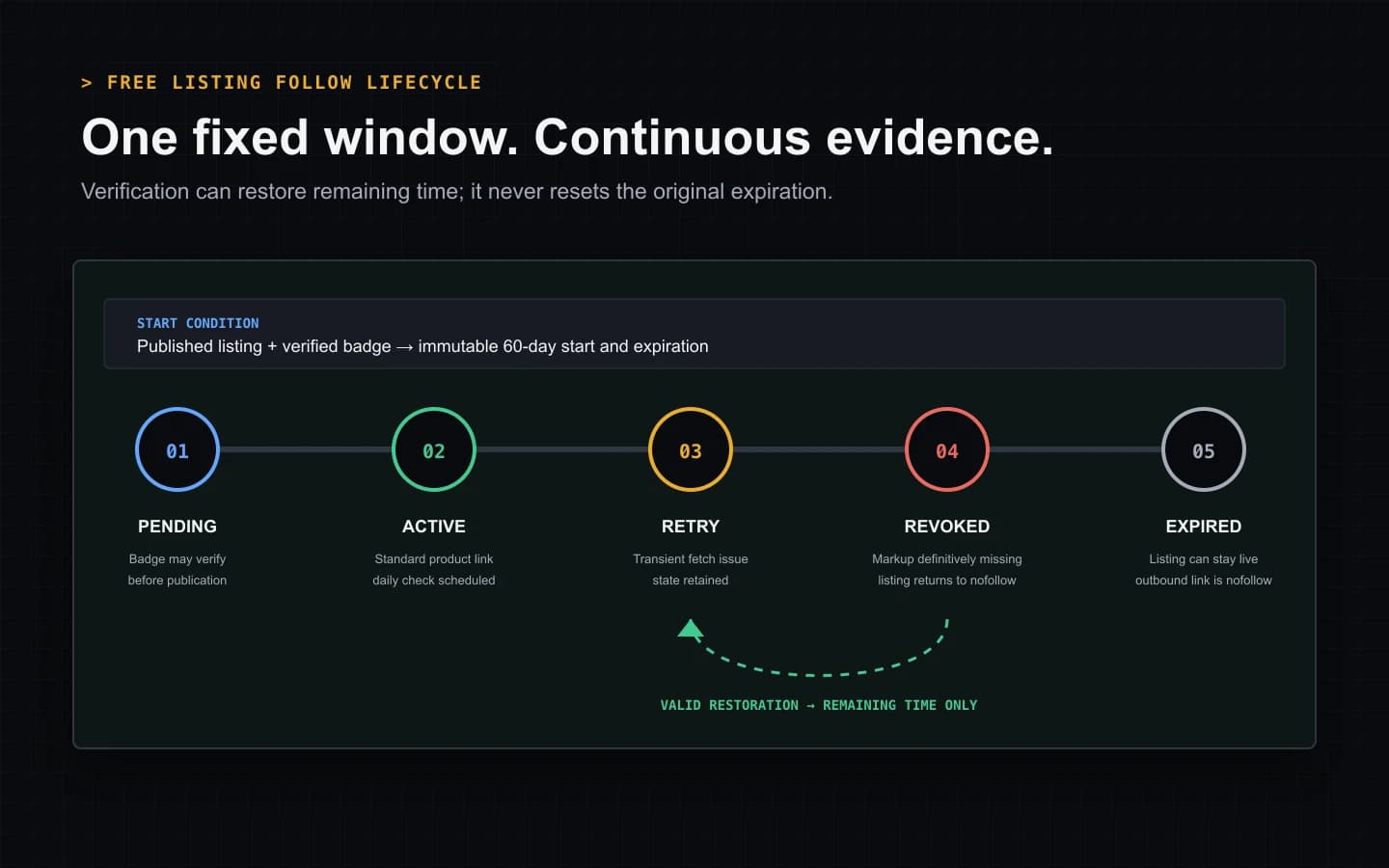
The implemented Free benefit is one 60-day follow window. It starts only when the listing is published and badge verification has succeeded. Verifying before publication records a pending state; it does not consume days while the listing is still waiting to launch.
The start and expiration timestamps become fixed when the window begins. Removing the badge changes the listing back to nofollow after a definitive failed check. Restoring the valid badge can reactivate standard-link treatment only for the time left in the original window. Reinstalling the badge does not restart, extend, or stack another 60 days.
At the end of the window, the listing does not disappear merely because the follow benefit ended. It can remain a published public product page, but the outbound destination uses nofollow. Featured is a separate one-time option with no reciprocal-badge requirement or weekly queue; review the current pricing and link options before choosing between the two paths.
Daily re-verification protects both sides of the exchange
Verified free badges are scheduled for another check approximately every 24 hours while the window is eligible. The service leases each job so parallel workers do not process the same record at the same time.
A definitive failure—such as missing markup, an ineligible redirected domain, or a 401, 403, 404, or 410 response—changes the badge state to failed and the listing link to nofollow. This is how a badge removed after the initial check also removes the corresponding follow entitlement.
Temporary infrastructure problems are handled differently. A timeout, short network interruption, or transient server error does not immediately revoke a previously verified badge. The service keeps that state and retries with bounded delays. That distinction prevents a brief outage from silently penalizing an otherwise valid installation while still enforcing a genuinely missing badge.
You can manually run Recheck badge after restoring a page. A successful later check clears the failure and returns the listing to the policy allowed by the unexpired original window.
Diagnose a badge that will not verify
Start with the exact failure shown in the dashboard or terminal. Then check the delivered page rather than only the site-builder preview.
- The badge is visible but not found. View the raw page source. A client-side widget may be inserting the badge only after JavaScript runs. Place the issued anchor and image in server-rendered HTML.
- The image loads but verification fails. Confirm that the image remains inside the issued anchor and that the token and destination were not edited.
- The link was qualified automatically. Some CMS or external-link plugins
add
nofollow,sponsored, orugc. Exclude this badge from that rewrite if you intend to use the current reciprocal program. - The page redirects or blocks scanners. Verify the final HTTPS URL on the submitted domain and allow a normal unauthenticated request.
- A lazy loader changed the image. Keep the issued URL in a supported
src,data-src, ordata-lazy-srcattribute. - The badge is intentionally hidden. Move it into a visible layout with nonzero dimensions rather than trying to satisfy the checker with concealed markup.
- The listing still says pending. Verification can precede editorial approval and publication. The follow state activates after the approved listing goes live.
If the badge is correct but the result remains unclear, save the page URL and the displayed failure before contacting support. Do not post the private owner credential or authorization token.
Dofollow verification is not a ranking guarantee
“Dofollow” is common industry shorthand, not an HTML rel="dofollow" value.
A standard anchor simply omits values such as nofollow, sponsored, and
ugc. Google documents that crawlable anchors generally use an <a> element
with an href, and that qualified links are generally not followed. Neither
condition guarantees indexing, ranking improvement, Domain Rating growth,
traffic, or a particular interpretation by another crawler.
For the general markup distinction, compare dofollow and nofollow backlinks.
There is also a material policy tradeoff. Google lists excessive link
exchanges, required links without a qualification choice, paid links that pass
ranking credit, and low-quality directory links among its link-spam examples.
It recommends sponsored for paid placements and nofollow when other
qualifications do not apply. SubmitForBacklinks currently implements the
owner-selected reciprocal-link product
policy described in this guide: a verified
reciprocal badge controls a time-limited standard link for a Free listing. Site
owners
should review Google's link-spam policy
and decide whether that exchange fits their own search-risk tolerance.
The durable value of the listing should still come from an accurate product page that helps a visitor discover and evaluate the product. Verification confirms a technical reciprocal condition. It does not replace editorial review, useful content, or a broader promotion strategy.
Final verification checklist
Before leaving the workflow, confirm all of the following:
- the submission is Free and belongs to the signed-in owner;
- the issued badge is visible on a public HTTPS page on the product domain;
- the original token, destination, image URL, and anchor relationship remain;
- the reciprocal anchor is not marked
nofollow,sponsored, orugc; - the dashboard reports verified, pending publication, active, or expired with the expected meaning;
- the public product listing shows the correct destination and current policy; and
- you understand that the fixed follow window, daily rechecks, and external search-policy risks are separate from any ranking outcome.
Once those checks pass, keep the badge page stable and use the submission dashboard for future status or re-verification. For the full listing lifecycle, start with the terminal submission guide or review the submission guidelines.
Verify a Dofollow Backlink
A 20-second first-party walkthrough of copying the issued badge, publishing it on the product domain, verifying the live page, and understanding daily rechecks and expiration.
Video transcript
Open the Free submission and copy one issued reciprocal badge theme. Publish the complete anchor and image on a visible HTTPS page on the submitted product domain. Paste that exact page into the verifier. The service checks the unique token, accepted destination, matching image, visible markup, and link relationship. Publication plus successful verification starts one fixed 60-day dofollow window. Verified badges are rechecked daily. Temporary fetch problems retry without immediately revoking a valid state; definitively missing or changed markup returns the listing to nofollow. Restoring the badge can recover only the time remaining before the original expiration.
Sources and verification
Product behavior was checked against the current implementation and automated tests. External policy sources are linked directly.
- SubmitForBacklinks agent API reference — checked July 30, 2026
- SubmitForBacklinks submission guidelines — checked July 30, 2026
- Google guidance for crawlable links — checked July 30, 2026
- Google guidance for qualifying outbound links — checked July 30, 2026
- Google Search spam policies — checked July 30, 2026
- WHATWG HTML standard: link type nofollow — checked July 30, 2026
Put the workflow into practice
Use the guided terminal flow or review the supporting documentation before submitting a product.
Related resources
Dofollow vs Nofollow Backlinks: What Actually Changes
Compare dofollow and nofollow backlink HTML, sponsored and UGC values, Google’s hint model, and a repeatable way to inspect real links.
Open resourceHow to Submit a SaaS Listing With an AI Agent
Run one command, scan your SaaS website, review the listing, and submit it from your terminal with a clear Free or Featured next step.
Open resource