Guided terminal submission
How to Submit a Backlink From the CLI
Use the shortest supported terminal path while keeping installation safety, owner authorization, reviewed product fields, plan choices, and the exact next action visible.
- Reviewed by
- SubmitForBacklinks Editorial Team
- Published
- Updated
- Checked
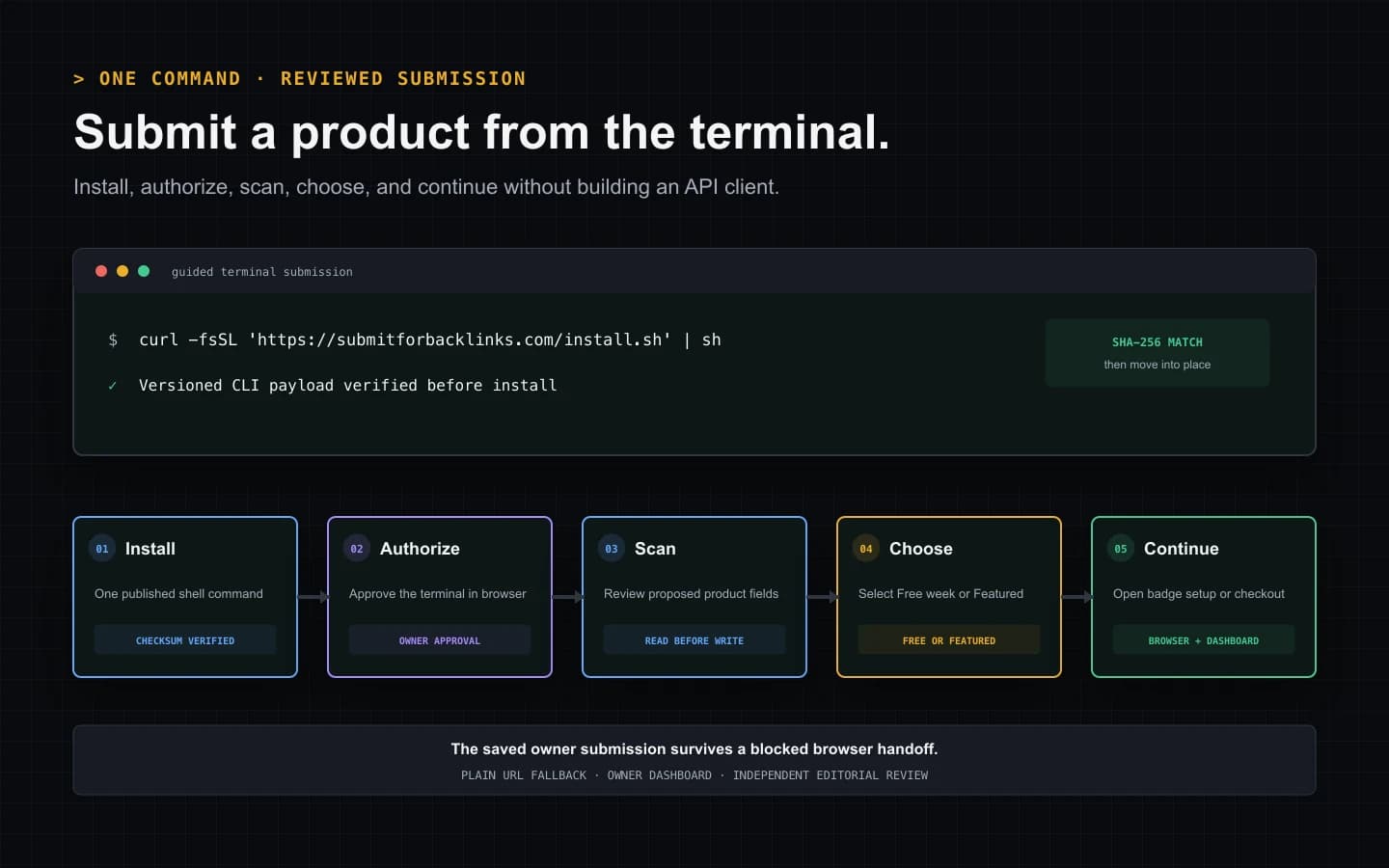
Direct answer: one command starts a reviewed submission
CLI backlink submission is the command-line path for scanning a product website, reviewing the proposed directory listing, and sending that listing to editorial review. With SubmitForBacklinks, the shortest supported path is:
curl -fsSL 'https://submitforbacklinks.com/install.sh' | sh
The installer starts the guided CLI when it has access to an interactive terminal. The CLI opens a short-lived browser authorization page, returns to the terminal after approval, asks for one public product URL, displays the scanned fields, and offers Free or Featured. A successful Free submission opens reciprocal-badge setup. A successful Featured-intent submission opens the secure one-time checkout.
This does not publish a backlink immediately. The durable result is an owner-scoped submission waiting for the applicable next step and independent editorial review. Publication, link treatment, badge verification, payment, indexing, and search performance remain separate outcomes.
Check the local requirements before installing
The published installer supports macOS and Linux and expects three local capabilities:
- a POSIX-compatible shell to run the installer;
curlto retrieve the installer and versioned CLI payload; and- Node.js 22 or newer to verify and run the CLI.
The installer stops with an explicit prerequisite message when curl or Node
is unavailable. It installs the executable in $HOME/.local/bin by default.
If that directory is not already on PATH, the script adds the corresponding
export line to the detected zsh, bash, or generic shell profile for future
terminal windows.
The runtime includes a Windows browser-opening branch for compatible
environments, but the one-line sh installer and public product page currently
document macOS and Linux. Do not present native Windows installation as a
published guarantee.
What the one-line installer actually changes
Piping a remote installer to a shell is convenient, not zero trust. The command executes the installer from the visible SubmitForBacklinks hostname. That installer then checks the CLI payload:
- it selects the currently published semantic version;
- it downloads that version to a temporary
.downloadpath; - it calculates the file’s SHA-256 digest with Node;
- it compares the result with the release digest embedded in the installer;
- it moves the verified payload into place and makes it executable.
If the digest differs, installation stops before the downloaded CLI can
replace the installed program. This protects the versioned payload, not the
initial remote shell command. A cautious operator can read /install.sh
before executing it.
The default install does not ask the user to paste an API key or add a secret
to .env. Browser authorization issues the credential to that terminal
session after the signed-in owner approves it.
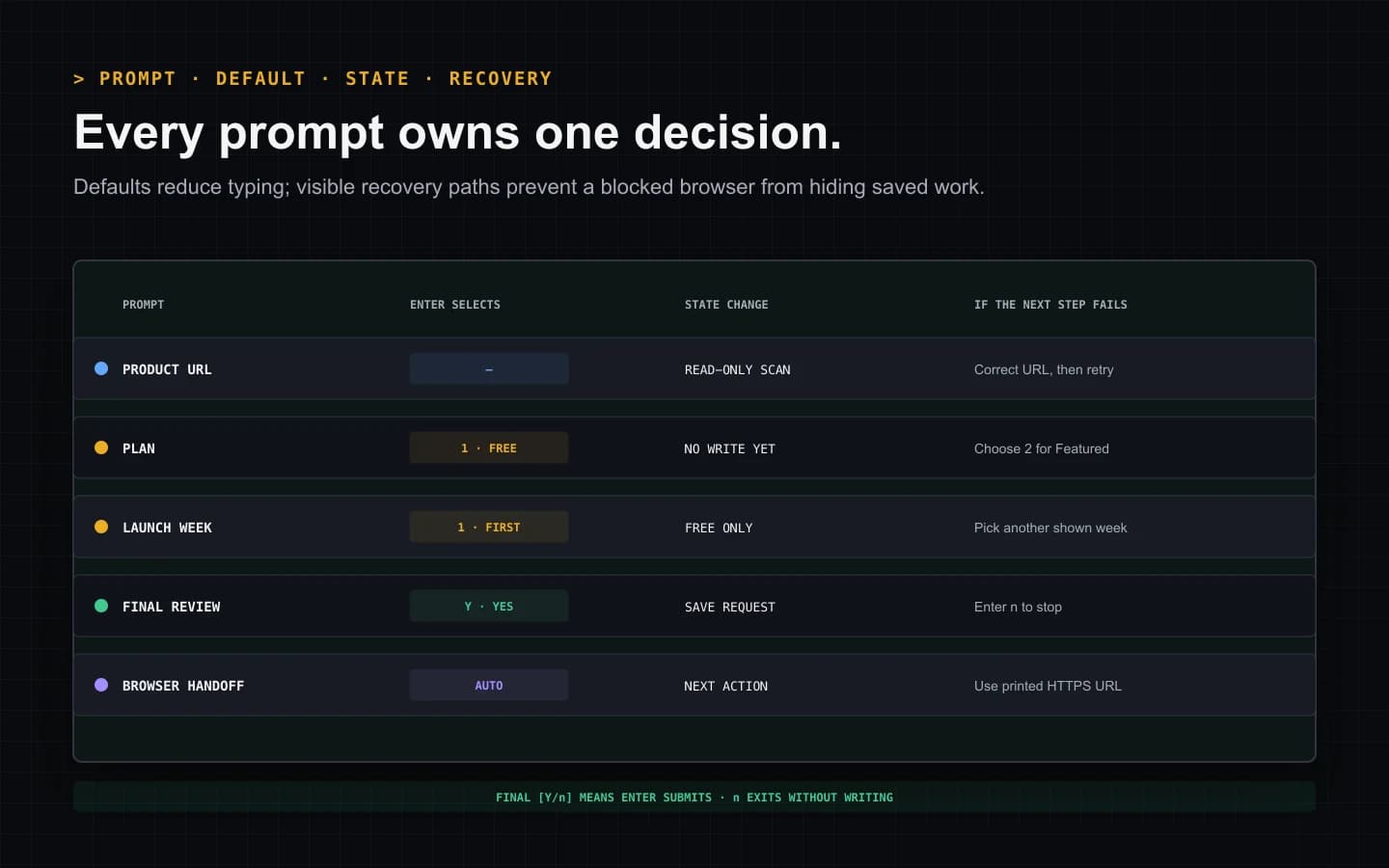
Follow the prompts by meaning, not muscle memory
The interactive sequence is intentionally short, but each prompt controls a different decision.
Product URL starts a non-writing scan
At Product URL:, paste the public homepage for the product being submitted.
The CLI adds HTTPS when the scheme is omitted and rejects malformed,
credential-bearing, or non-web addresses locally.
The next request scans public website content and proposes the listing name, tagline, primary category, pricing model, platform, and tags. The terminal prints those fields before asking for a plan or final confirmation. Scanning does not create a listing, reserve a week, buy Featured placement, or publish a page.
Read the fields rather than treating a successful scan as proof that every inference is correct. The final confirmation states that the person reviewed the listing and can represent the product because the server records those attestations with the submitted data.
Plan selection defaults to Free
The plan prompt shows:
Dofollow link options:
  1) Free · verify a reciprocal badge for a dofollow link
  2) Featured · $8.99 one-time · no badge or weekly queue
Choose option [1-2, default 1]:
Pressing Enter selects option 1. Choosing Free then displays up to four available launch weeks with their remaining capacity. Pressing Enter at the week selector chooses the first displayed week; entering another shown number chooses that week instead.
Choosing Featured skips the launch-week selector because Featured does not use the weekly Free queue. It does not skip owner review or editorial moderation.
Final confirmation defaults to Yes
The final prompt uses [Y/n], which means Enter is affirmative. The sentence
covers the reviewed listing, representative authority, guidelines, and
chosen-plan terms.
Enter n when the scan is wrong, the wrong week or plan was selected, or the
person cannot make those attestations. The CLI exits without submitting and
prints the command to restart later.
The Free path hands off to reciprocal-badge setup
After a Free request is saved, the terminal confirms the selected launch week
and states the exact next action: add and verify the reciprocal badge to
activate the current dofollow entitlement. When the response includes the
submission identifier, the CLI builds a direct owner-dashboard URL ending in
#badge-setup.
On macOS it asks open to launch that URL. On Linux it asks xdg-open. When
the operating system reports that the handoff started, the terminal says badge
setup opened. It also prints the full URL using the terminal hyperlink format
when the terminal supports it.
If browser launch fails, nothing about the saved submission is lost. The same dashboard URL remains in plain text for copying into a browser. Open it while signed into the same account, copy one issued badge theme, publish the exact markup on a visible HTTPS page on the submitted product domain, and verify that live page.
A Free listing still requires editorial approval. Under the current product policy, publication plus successful reciprocal-badge verification controls a fixed, time-limited dofollow window. The badge is rechecked, so a later definitive removal can return the listing link to nofollow.
The Featured path opens checkout before review
After a Featured-intent submission is saved, the CLI requires a valid submission identifier before it requests checkout. It then asks the owner-scoped checkout endpoint for a secure Stripe URL. Only an HTTPS checkout URL is accepted.
When browser launch succeeds, the CLI tells the user to pay in the browser and return to the terminal. When launch fails, it prints the checkout address so the same session can continue manually. The saved submission also remains available in the owner dashboard.
The current price is $8.99 one time. Successful payment removes the reciprocal badge and weekly-queue requirements, but it does not purchase editorial approval. An approved paid submission activates the current permanent Featured listing entitlement. A rejected paid submission enters the automatic refund workflow.
A browser problem after “Submitted for Featured review” does not mean the submission vanished. Open the printed checkout URL or dashboard instead of starting a second submission.
Browser authorization is separate from product verification
On the first guided run, the CLI requests a one-time device authorization and prints its verification URL before attempting to open it. The browser page uses the existing SubmitForBacklinks login session. After the signed-in owner approves the terminal, the CLI polls the short-lived authorization until it receives the account credential.
The credential is saved in the local CLI configuration with owner-only file
permissions. It is not printed in normal output. Later guided runs can say
Signed in and proceed without repeating the browser step while that
credential remains valid.
Sign-in proves which account owns the CLI actions, not control of every product URL. Representative attestation, public-site evidence, editorial checks, and badge verification serve different purposes.
If the one-time page expires before approval, rerun submitforbacklinks start
to create a fresh authorization. Do not reuse an expired browser address or
expect the CLI to recover a credential from a different account session.
Installed clients check for updates at startup
The installed executable checks the same-origin
/downloads/submitforbacklinks/latest.json manifest when start runs. If the
manifest advertises a newer semantic version, an exact same-origin download
path, and a valid SHA-256 value, the CLI downloads the candidate and compares
its digest before replacing itself.
A successful update prints the old and new versions, restarts once, and continues the requested command. A network error or malformed manifest leaves the working executable in place. If a newer release is known but cannot be downloaded, verified, or installed safely, the CLI prints the one-line reinstall command instead of executing unverified bytes.
Self-update currently applies to an installed executable named
submitforbacklinks on non-Windows platforms. Running a differently named
downloaded source file does not silently rewrite that file. Operators can
inspect the active version with:
submitforbacklinks --version
Very old clients may receive a machine-readable upgrade-required response from the server. The recovery remains the published one-line installer.
Recover by the stage that failed
The installer cannot find Node. Install Node.js 22 or newer, verify node --version, and rerun the one-line command.
The command installs but is not found. Open a new terminal so the updated
profile is loaded, or run $HOME/.local/bin/submitforbacklinks start.
No browser opens for sign-in. Copy the printed authorization URL into a browser. Complete sign-in before its expiration and return to the waiting terminal.
The scan rejects the URL. Confirm the address is a public HTTP or HTTPS product site. Remove embedded credentials and correct the hostname before retrying.
The scanned listing is inaccurate. Decline the final confirmation. Correct the product website or use the dashboard and advanced reviewed-data workflow; do not attest that unreviewed generated content is correct.
No Free weeks appear. The Free launch inventory is shared. Choose Featured only if its terms fit the owner’s intent; otherwise return when a Free week is available.
Badge setup or checkout does not open. Use the full URL printed immediately after submission. Terminal hyperlink support is an enhancement, not the only recovery path.
A request times out after submission. Check the owner dashboard or use the status command before starting over. The service uses mutation identities to make identical advanced retries observable, but the interactive workflow’s durable submission record is the safest user-facing source of truth.
Choose the CLI for a person-guided run
The interactive CLI is a strong fit when one operator wants to submit one product and see every important decision in sequence. It hides request construction while keeping the proposed copy, plan, week, terms, and browser handoff visible.
Use MCP instead when an existing agent host should discover named tools and keep the interaction inside that host. Use the REST API when a service or CI workflow needs direct control over scopes, reviewed request bodies, idempotency keys, pagination, and error codes. Those channels create more implementation responsibility and should not be presented as a shorter version of the guided user flow.
The concise /cli page remains the copy-and-run surface. This guide explains
what installation changes, what each prompt means, and how to recover without
creating duplicate work.
A preflight checklist for CLI backlink submission
Before pressing Enter at the final [Y/n] prompt, confirm:
- the command came from the expected HTTPS hostname;
- the machine has
curl, a supported shell, and Node.js 22 or newer; - the browser authorization used the intended owner account;
- the public product URL is correct;
- every displayed listing field was reviewed;
- Free or Featured matches the intended cost and badge requirements;
- the chosen Free launch week is correct, when applicable;
- the person can make every attestation in the final prompt;
- the printed dashboard, badge, or checkout URL is retained; and
- no one is treating submission as guaranteed publication or SEO growth.
SubmitForBacklinks currently uses standard outbound links for approved Featured listings and active verified reciprocal-badge entitlements. Google’s spam policies identify paid links that pass ranking credit and required reciprocal arrangements among link-spam examples. The product owner has accepted that policy risk. The CLI describes the current product options; it does not guarantee indexing, ranking, traffic, Domain Rating, authority, or link equity.
When the checklist is true, copy the installer from the CLI product page and complete one reviewed run. Use the quickstart for the current command reference and the broader agent submission guide when you need the complete product-listing context beyond the terminal itself.
CLI Backlink Submission Demo
An 18-second first-party terminal demonstration covering install, browser authorization, public website scan, reviewed plan choices, and the badge-setup or checkout handoff.
Video transcript
Run the one-line installer. The installer downloads the versioned CLI payload and verifies its SHA-256 digest before moving it into place. Approve the short-lived owner authorization in the signed-in browser; the credential is stored locally without being printed. Paste one public product URL and review the proposed name, category, pricing, platform, and tags. Choose Free or Featured, choose a launch week when Free is selected, and confirm the reviewed request at the final default-Yes prompt. The saved Free path opens reciprocal-badge setup, while Featured opens secure one-time checkout. If the browser cannot open, use the full HTTPS URL printed in the terminal or continue from the owner dashboard.
Sources and verification
Product behavior was checked against the current implementation and automated tests. External policy sources are linked directly.
- SubmitForBacklinks CLI product page — checked July 30, 2026
- SubmitForBacklinks published shell installer — checked July 30, 2026
- SubmitForBacklinks current CLI release manifest — checked July 30, 2026
- SubmitForBacklinks terminal quickstart — checked July 30, 2026
- SubmitForBacklinks submission guidelines — checked July 30, 2026
- Google Search spam policies — checked July 30, 2026
Put the workflow into practice
Use the guided terminal flow or review the supporting documentation before submitting a product.
Related resources
How to Submit a SaaS Listing With an AI Agent
Run one command, scan your SaaS website, review the listing, and submit it from your terminal with a clear Free or Featured next step.
Open resourceHow AI Agent Directory Submission Works
See how an AI agent discovers capabilities, uses scoped authorization, saves an owner draft, submits reviewed fields, and handles each result.
Open resource